All 57 lessons
Lesson 40 of 57 · Data Visualization
Visual Storytelling: Building a One-Page KPI Dashboard in Python
By Skillancy Editorial Team
Run the code in the free Python Compiler or on your own computer. Lessons that read files use the FreshBasket practice data: download the dataset (ZIP).
You can now draw almost any chart. The final step in visualisation is the hardest: assembling charts into something a busy manager will actually use. A pile of correct charts is not a report. A report has a point of view: it leads with the headline, supports it with a few well-chosen visuals, and ends with what to do next. This lesson is about that craft, visual storytelling, and puts it into practice by building a single-page FreshBasket KPI dashboard entirely in Python.
We follow a simple recipe. First decide the audience and the question (what decision will this support?). Then choose a handful of KPIs and make them impossible to miss. Add context (comparisons to a previous period or target). Write headline titles that state the finding. Use colour sparingly to direct attention. Finally, export the page as a PNG for chat apps and a PDF for email. Everything uses the tools from this module: Matplotlib subplots, formatters, annotations, and a few layout tricks (GridSpec) that make dashboards look professional.
Worked examples
Example 1: Start with the question
Question: What will the dashboard help a regional manager decide?
brief = {
    "audience": "Operations head",
    "question": "Are we growing healthily, and where do we need to act?",
    "kpis": ["Delivered revenue", "Orders", "Avg delivery time", "On-time rate (<=30 min)", "Cancellation rate"],
    "charts": ["Revenue trend", "City ranking", "Delivery time vs target", "Cancellations by city"],
    "action": "Decide which city gets extra riders next month",
}
for k, v in brief.items():
    print(f"{k:<10}{v}")
print(len(brief["kpis"]), len(brief["charts"]))
Output
audience  Operations head
question  Are we growing healthily, and where do we need to act?
kpis      ['Delivered revenue', 'Orders', 'Avg delivery time', 'On-time rate (<=30 min)', 'Cancellation rate']
charts    ['Revenue trend', 'City ranking', 'Delivery time vs target', 'Cancellations by city']
action    Decide which city gets extra riders next month
5 4
How it works: Before writing any plotting code, write a one-paragraph brief: who reads this, what decision it supports, which five or so numbers matter, which three or four charts show them, and what action should follow. A dashboard that answers one question well beats one that answers ten questions badly. Everything below serves this brief.
Reading the result: The brief fixes 5 KPIs and 4 charts. If a chart does not help the decision, leave it out.
Example 2: Compute the KPIs with a comparison
Question: What are the headline numbers, and how do they compare with the previous month?
import pandas as pd
import numpy as np

orders = pd.read_csv("orders.csv", parse_dates=["order_date"])
items = pd.read_csv("order_items.csv")
stores = pd.read_csv("stores.csv")

value = items.assign(v=items["quantity"] * items["unit_price"]).groupby("order_id")["v"].sum().rename("value")
o = orders.merge(value, on="order_id", how="left").merge(stores[["store_id", "city"]], on="store_id")
o["month"] = o["order_date"].dt.to_period("M")

def kpis(d):
    delivered = d[d["order_status"] == "Delivered"]
    return {
        "revenue": delivered["value"].sum(),
        "orders": len(d),
        "avg_minutes": delivered["delivery_minutes"].mean(),
        "on_time": (delivered["delivery_minutes"] <= 30).mean(),
        "cancel_rate": (d["order_status"] == "Cancelled").mean(),
    }

latest, prev = o["month"].max(), o["month"].max() - 1
cur, old = kpis(o[o["month"] == latest]), kpis(o[o["month"] == prev])

for k in cur:
    delta = (cur[k] - old[k]) / old[k] * 100
    print(f"{k:<12}{cur[k]:>12,.2f}{old[k]:>12,.2f}{delta:>8.1f}%")
Output
revenue       388,871.00  362,430.00     7.3%
orders            630.00      606.00     4.0%
avg_minutes        23.74       24.40    -2.7%
on_time             0.83        0.82     0.8%
cancel_rate         0.06        0.05     7.8%
How it works: A function computes the KPIs for any slice of orders, so we can call it for the latest month and for the month before. A KPI without a comparison is hard to interpret; a number against last month, last year or a target tells the reader whether to worry. The loop prints each KPI, its previous value and the percentage change.
Reading the result: In 2026-06, delivered revenue was ₹388,871, 7.3% versus 2026-05. Orders were 630, the on-time rate 82.7% and cancellations 5.9%.
Example 3: Formatting helpers
Question: Format rupees, percentages and changes consistently.
def inr_short(x):
    if abs(x) >= 1e7:
        return f"₹{x / 1e7:.2f} Cr"
    if abs(x) >= 1e5:
        return f"₹{x / 1e5:.2f} L"
    return f"₹{x:,.0f}"

def pct(x, d=1):
    return f"{x * 100:.{d}f}%"

def delta_text(new, old, good_when_up=True):
    change = (new - old) / old
    arrow = "▲" if change >= 0 else "▼"
    good = (change >= 0) == good_when_up
    return f"{arrow} {abs(change) * 100:.1f}%", ("#2A9D8F" if good else "#E76F51")

print(inr_short(cur["revenue"]), pct(cur["on_time"]), pct(cur["cancel_rate"], 2))
print(delta_text(cur["revenue"], old["revenue"]))
print(delta_text(cur["cancel_rate"], old["cancel_rate"], good_when_up=False))
Output
₹3.89 L 82.7% 5.87%
('▲ 7.3%', '#2A9D8F')
('▲ 7.8%', '#E76F51')
How it works: Small helper functions keep formatting identical everywhere, so "₹5.2 L" never appears as "520000" in one place and "5.2 lakh" in another. delta_text returns an arrow with the size of the change and a colour, and it knows that for cancellations an increase is bad, so the colour logic is not simply "up is green". Encoding that business rule once avoids misleading colours.
Reading the result: Revenue shows ▲ 7.3% and cancellations ▲ 7.8%, each coloured by whether the change is good or bad news.
Example 4: KPI tiles
Question: Draw big-number tiles with comparison arrows.
import matplotlib.pyplot as plt
from matplotlib.patches import FancyBboxPatch
import skillancy_style

tiles = [
    ("Delivered revenue", inr_short(cur["revenue"]), delta_text(cur["revenue"], old["revenue"])),
    ("Orders", f'{cur["orders"]:,}', delta_text(cur["orders"], old["orders"])),
    ("Avg delivery", f'{cur["avg_minutes"]:.1f} min', delta_text(cur["avg_minutes"], old["avg_minutes"], good_when_up=False)),
    ("On-time (<=30 min)", pct(cur["on_time"]), delta_text(cur["on_time"], old["on_time"])),
    ("Cancellations", pct(cur["cancel_rate"]), delta_text(cur["cancel_rate"], old["cancel_rate"], good_when_up=False)),
]

fig, ax = plt.subplots(figsize=(12, 1.9))
ax.set_xlim(0, len(tiles)); ax.set_ylim(0, 1); ax.axis("off")
for i, (label, big, (change, color)) in enumerate(tiles):
    ax.add_patch(FancyBboxPatch((i + 0.04, 0.06), 0.92, 0.88, boxstyle="round,pad=0.0,rounding_size=0.06", fc="#F4F7F8", ec="#D0D5DD"))
    ax.text(i + 0.5, 0.80, label, ha="center", va="center", fontsize=10, color="#5B6770")
    ax.text(i + 0.5, 0.50, big, ha="center", va="center", fontsize=22, fontweight="bold", color="#264653")
    ax.text(i + 0.5, 0.20, f"{change} vs last month", ha="center", va="center", fontsize=9.5, color=color)
How it works: We draw rounded rectangles with FancyBboxPatch and place three text lines in each: a small label, a big number and a coloured change line. The axes are turned off so only the tiles show. The tile pattern gives the reader the answer in a second: the number, and whether it is good news.
Reading the result: The five tiles show revenue ₹3.89 L, orders 630, average delivery 23.7 min, on-time 82.7% and cancellations 5.9%.
Example 5: A dashboard layout with GridSpec
Question: Combine the tiles and four charts on one page.
from matplotlib.gridspec import GridSpec
import matplotlib.dates as mdates
from matplotlib.ticker import FuncFormatter

delivered = o[o["order_status"] == "Delivered"].copy()
monthly = delivered.groupby(delivered["order_date"].dt.to_period("M").dt.to_timestamp())["value"].sum()
by_city = delivered.groupby("city").agg(revenue=("value", "sum"), avg=("delivery_minutes", "mean"), on_time=("delivery_minutes", lambda s: (s <= 30).mean())).sort_values("revenue")
canc = (o.assign(c=o["order_status"] == "Cancelled").groupby("city")["c"].mean().sort_values())

fig = plt.figure(figsize=(13, 8.2))
gs = GridSpec(3, 6, figure=fig, height_ratios=[0.8, 2.2, 2.2], hspace=0.55, wspace=0.9)

# tiles across the top
tile_gs = gs[0, :].subgridspec(1, 5, wspace=0.15)
tile_axes = [fig.add_subplot(tile_gs[0, i]) for i in range(5)]
for ax_t, (label, big, (change, color)) in zip(tile_axes, tiles):
    ax_t.axis("off")
    ax_t.text(0.5, 0.78, label, ha="center", fontsize=9, color="#5B6770", transform=ax_t.transAxes)
    ax_t.text(0.5, 0.40, big, ha="center", fontsize=16, fontweight="bold", color="#264653", transform=ax_t.transAxes)
    ax_t.text(0.5, 0.05, change, ha="center", fontsize=9, color=color, transform=ax_t.transAxes)

a1 = fig.add_subplot(gs[1, :4])
a1.plot(monthly.index, monthly.values, marker="o", linewidth=2)
a1.yaxis.set_major_formatter(FuncFormatter(lambda x, p: inr_short(x)))
a1.xaxis.set_major_formatter(mdates.DateFormatter("%b '%y"))
a1.set_title("Revenue is growing every quarter", loc="left")

a2 = fig.add_subplot(gs[1, 4:])
bars = a2.barh(by_city.index, by_city["revenue"] / 1e5, color="#028090")
a2.set_title("Delhi and Bengaluru lead", loc="left")
a2.set_xlabel("Revenue (₹ lakh)")
a2.grid(axis="y", visible=False)

a3 = fig.add_subplot(gs[2, :3])
a3.bar(by_city.index, by_city["avg"], color=["#E76F51" if v == by_city["avg"].max() else "#8D99AE" for v in by_city["avg"]])
a3.axhline(30, color="#264653", linestyle="--")
a3.text(-0.4, 30.4, "service target 30 min", fontsize=8, color="#264653")
a3.set_ylim(0, 34)
a3.set_title("Every city meets the 30-minute target", loc="left")
a3.tick_params(axis="x", rotation=45, labelsize=8)
a3.set_ylabel("Avg minutes")

a4 = fig.add_subplot(gs[2, 3:])
a4.barh(canc.index, canc.values * 100, color="#E76F51")
a4.set_title("Cancellations are 5-7% everywhere", loc="left")
a4.set_xlabel("Cancellation rate (%)")
a4.grid(axis="y", visible=False)

fig.suptitle("FreshBasket - Operations dashboard, latest month and trend", x=0.01, ha="left", fontsize=15, fontweight="bold")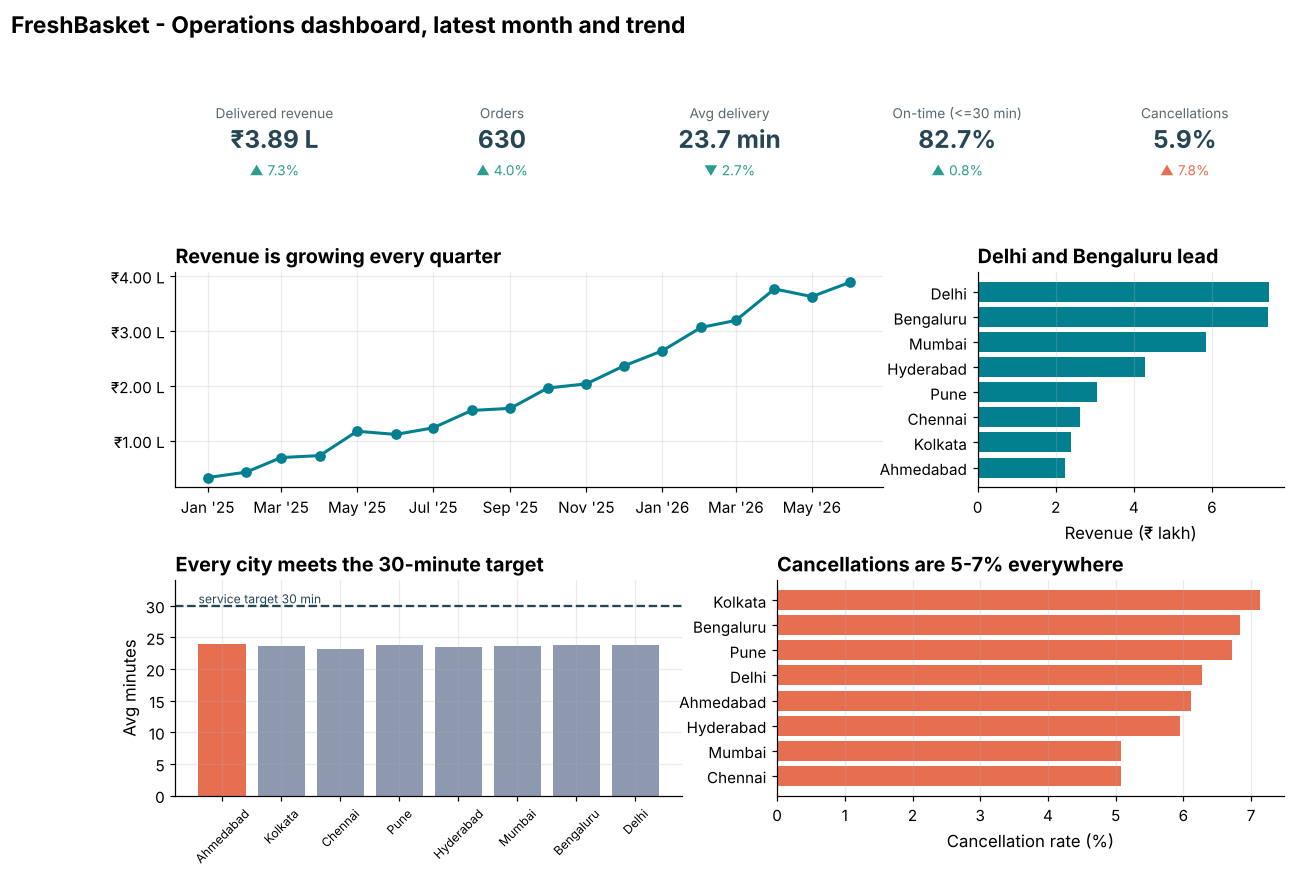
How it works: GridSpec(rows, cols) divides the page into a grid, and each chart claims a rectangle of cells (gs[1, :4] is row 1, columns 0 to 3). Mixing spans such as 4+2 columns creates a hierarchy: the wide trend chart dominates, the ranking sits beside it. Titles are left-aligned headlines that state the finding. Accent colour is used only for the slowest city's bar; everything else is neutral or the brand teal.
Reading the result: The page combines 5 tiles and four charts. The longest city average is 24.0 minutes, well under the 30-minute target, so the headline "every city meets the target" is true. Check each title against the data before publishing.
Example 6: Highlight the exception
Question: Show which city needs action using one accent colour.
city_stats = by_city.copy()
city_stats["late_pct"] = 1 - city_stats["on_time"]
city_stats = city_stats.sort_values("late_pct")
worst = city_stats.index[-1]

fig, ax = plt.subplots(figsize=(8, 4.2))
colors = ["#E76F51" if c == worst else "#C5CCD3" for c in city_stats.index]
bars = ax.barh(city_stats.index, city_stats["late_pct"] * 100, color=colors)
ax.bar_label(bars, labels=[f"{v * 100:.1f}%" for v in city_stats["late_pct"]], padding=3, fontsize=9)
ax.set_xlabel("Deliveries slower than 30 minutes (%)")
ax.set_title(f"{worst} is slowest to deliver on time, but only narrowly", loc="left")
ax.grid(axis="y", visible=False)
ax.set_xlim(0, city_stats["late_pct"].max() * 100 * 1.2)
Output
(0.0, 20.813704496788006)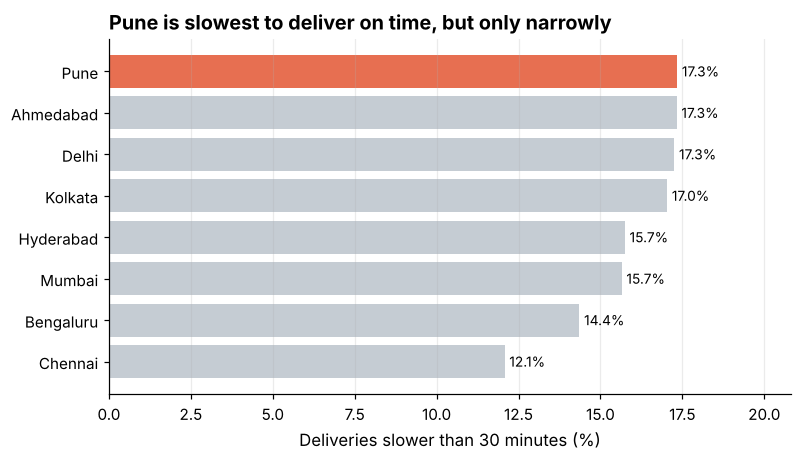
How it works: Grey for everything except the point you want to make is the most effective use of colour in storytelling: the eye goes straight to the highlighted bar. The title names the city and is honest about how small the gap is. Without the highlight, the reader would have to search for the maximum.
Reading the result: Pune has 17.3% late deliveries against 12.1% in the best city. Several cities are almost tied, so the title says "narrowly" rather than calling for action on one city.
Example 7: Add context with a target and annotation
Question: Make the revenue trend tell a story with a milestone.
fig, ax = plt.subplots(figsize=(9, 4.2))
ax.plot(monthly.index, monthly.values, linewidth=2.5, color="#028090")
ax.fill_between(monthly.index, monthly.values, alpha=0.12, color="#028090")
ax.yaxis.set_major_formatter(FuncFormatter(lambda x, p: inr_short(x)))
ax.xaxis.set_major_formatter(mdates.DateFormatter("%b '%y"))

first, last = monthly.iloc[0], monthly.iloc[-1]
ax.annotate(inr_short(first), (monthly.index[0], first), xytext=(10, 30), textcoords="offset points", arrowprops=dict(arrowstyle="-", color="#8D99AE"))
ax.annotate(inr_short(last), (monthly.index[-1], last), xytext=(-60, 5), textcoords="offset points", fontweight="bold", color="#028090")
ax.set_title(f"Monthly delivered revenue grew {last / first:.0f}x in {len(monthly) - 1} months", loc="left")
ax.set_ylim(bottom=0)
fig.autofmt_xdate()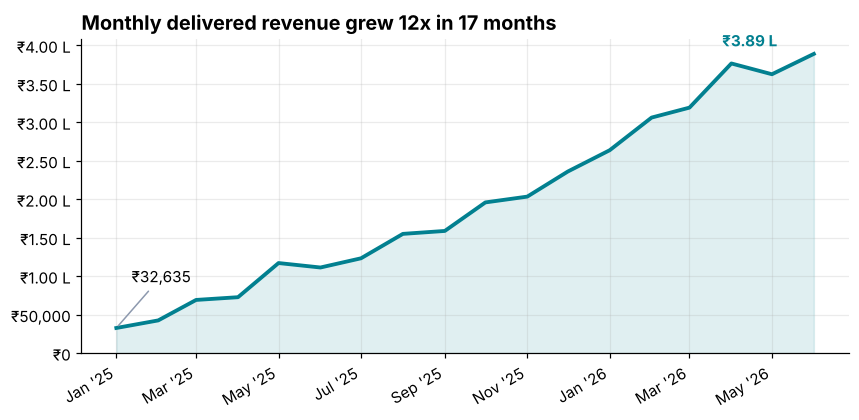
How it works: Labelling only the first and last points tells the whole story (where we started, where we are) without clutter. The fill_between adds weight, and the title quantifies the growth, which we compute from the data so the headline can never go stale: it is an f-string.
Reading the result: Revenue went from ₹32,635 to ₹3.89 L, growth of 11.9x. Building titles from computed values ensures that next month's refresh stays correct.
Example 8: Export as PNG and PDF
Question: Save the dashboard for chat and for email.
from matplotlib.backends.backend_pdf import PdfPages
from pathlib import Path

Path("out").mkdir(exist_ok=True)

fig.savefig("out/trend.png", dpi=200, bbox_inches="tight", facecolor="white")

with PdfPages("out/report.pdf") as pdf:
    for title, vals in [("Revenue by month", monthly), ("Late share by city", city_stats["late_pct"])]:
        f, a = plt.subplots(figsize=(8.27, 5))
        a.plot(range(len(vals)), vals.values, marker="o")
        a.set_title(title)
        pdf.savefig(f, bbox_inches="tight")
        plt.close(f)

for p in sorted(Path("out").glob("*")):
    if p.name in ("trend.png", "report.pdf"):
        print(p.name, p.stat().st_size > 2000)
Output
report.pdf True
trend.png True
How it works: fig.savefig writes PNG (for chat and slides). For a multi-page PDF, open PdfPages and call pdf.savefig(fig) once per figure; each becomes a page. Use facecolor="white" so the background is not transparent in messaging apps, and close figures after saving to release memory.
Reading the result: The PNG and a 2-page PDF were created. A weekly report script can regenerate both files automatically, as the automation module shows.
Example 9: A reusable dashboard function
Question: Make the dashboard repeatable for any month.
def month_summary(df, month):
    month = pd.Period(month)
    cur = kpis(df[df["month"] == month])
    old = kpis(df[df["month"] == month - 1])
    lines = []
    for key, label in [("revenue", "Delivered revenue"), ("orders", "Orders"), ("on_time", "On-time rate")]:
        text, _ = delta_text(cur[key], old[key])
        value_txt = inr_short(cur[key]) if key == "revenue" else (pct(cur[key]) if key == "on_time" else f"{cur[key]:,}")
        lines.append(f"{label}: {value_txt} ({text} vs {month - 1})")
    return lines

for m in ["2026-04", "2026-05", "2026-06"]:
    print(m, month_summary(o, m)[0])

print(month_summary(o, "2026-06")[2])
Output
2026-04 Delivered revenue: ₹3.76 L (▲ 18.0% vs 2026-03)
2026-05 Delivered revenue: ₹3.62 L (▼ 3.7% vs 2026-04)
2026-06 Delivered revenue: ₹3.89 L (▲ 7.3% vs 2026-05)
On-time rate: 82.7% (▲ 0.8% vs 2026-05)
How it works: Packaging the KPI computation into a function that takes a month means the same code produces last month's, this month's or any month's summary. This is the first step toward automation: a script that runs every Monday and emails the result. The text summary lines can double as the caption of a chart or the body of an email.
Reading the result: The function produced one line per KPI for each month: Delivered revenue: ₹3.89 L (▲ 7.3% vs 2026-05). Reusable functions turn a one-off analysis into a product.
Example 10: A final quality checklist
Question: Is the dashboard ready to share?
checklist = [
    ("Each chart title states a finding", True),
    ("Axes labelled with units", True),
    ("Bars start at zero", True),
    ("One accent colour, grey for context", True),
    ("Numbers formatted for the audience (lakh/crore)", True),
    ("Every title claim checked against data", True),
    ("Source and date shown", False),
]
done = sum(ok for _, ok in checklist)
for item, ok in checklist:
    print("[x]" if ok else "[ ]", item)
print(done, len(checklist))
Output
[x] Each chart title states a finding
[x] Axes labelled with units
[x] Bars start at zero
[x] One accent colour, grey for context
[x] Numbers formatted for the audience (lakh/crore)
[x] Every title claim checked against data
[ ] Source and date shown
6 7
How it works: Before you share, walk through a short checklist. The last item reminds us that a dashboard should also say where the data came from and as of when, which we have not yet added. A footer such as "Source: FreshBasket orders, as of 30 Jun 2026" prevents a lot of questions.
Reading the result: 6 of 7 checks pass. The missing one is easy to fix with fig.text(0.01, 0.01, "Source: ...").
Common mistakes
1. Dashboards with no clear question, packed with every chart you could think of.
2. Number formats that do not match the audience (millions instead of lakh and crore).
3. Colour without meaning, where every bar is a different colour.
4. Titles that describe instead of conclude ("Orders by city").
5. Hard-coded text in titles that becomes wrong when the data refreshes.
fig, ax = plt.subplots()
ax.set_title(f"Revenue grew {int(last) // 0}x")
Output
Traceback (most recent call last):
  File "example.py", line 2, in <module>
    ax.set_title(f"Revenue grew {int(last) // 0}x")
                                 ~~~~~~~~~~^^~~
ZeroDivisionError: integer division or modulo by zeroPractice questions
Practice 1 (Easy): Add a source footer
Add a footer to the revenue trend figure saying "Source: FreshBasket orders, to 30 Jun 2026" and save it as out/trend_footer.png.
Show solution
fig.text(0.01, -0.02, "Source: FreshBasket orders, to 30 Jun 2026", fontsize=8, color="#8D99AE")
fig.savefig("out/trend_footer.png", dpi=150, bbox_inches="tight", facecolor="white")
print(Path("out/trend_footer.png").exists())
Output
Truefig.text places text in figure coordinates (0 to 1), so a negative y puts it below the axes, and bbox_inches="tight" keeps it in the saved image.
Practice 2 (Medium): Compare two months of cancellations
For the latest two months, compute the cancellation rate per city and plot a grouped bar chart.
Show solution
rates = (
    o[o["month"].isin([prev, latest])]
    .assign(c=lambda d: d["order_status"] == "Cancelled")
    .pivot_table(index="city", columns="month", values="c", aggfunc="mean")
    * 100
)
ax = rates.plot(kind="bar", figsize=(9, 4), color=["#8D99AE", "#E76F51"], width=0.75)
ax.set_ylabel("Cancellation rate (%)")
ax.set_xlabel("")
ax.set_title("Cancellation rates by city, last two months")
ax.legend(title="Month", frameon=False)
plt.xticks(rotation=30)
Output
(array([0, 1, 2, 3, 4, 5, 6, 7]), [Text(0, 0, 'Ahmedabad'), Text(1, 0, 'Bengaluru'), Text(2, 0, 'Chennai'), Text(3, 0, 'Delhi'), Text(4, 0, 'Hyderabad'), Text(5, 0, 'Kolkata'), Text(6, 0, 'Mumbai'), Text(7, 0, 'Pune')])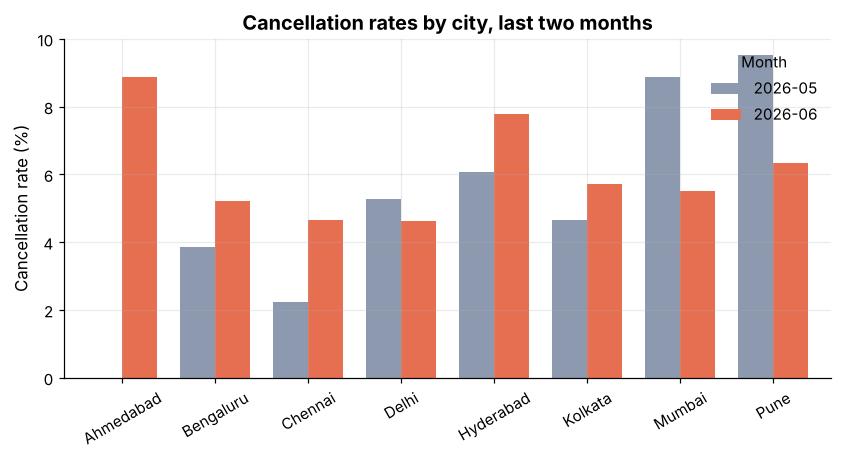
The pivot gives one column per month. The highest latest-month rate is 8.9% in Ahmedabad. With small monthly counts per city, expect noisy rates.
Practice 3 (Hard): Write the narrative
Write a function headline(o, month) that returns a one-sentence headline such as "Revenue ₹X (up Y% on last month); on-time rate Z%; weakest city: C", built from the data.
Show solution
def headline(df, month):
    month = pd.Period(month)
    d = df[df["month"] == month]
    c, p = kpis(d), kpis(df[df["month"] == month - 1])
    change = (c["revenue"] - p["revenue"]) / p["revenue"]
    word = "up" if change >= 0 else "down"
    late = (d[d["order_status"] == "Delivered"].groupby("city")["delivery_minutes"].apply(lambda s: (s > 30).mean()))
    return f"Revenue {inr_short(c['revenue'])} ({word} {abs(change):.0%} on last month); on-time rate {c['on_time']:.0%}; weakest city: {late.idxmax()}"

print(headline(o, "2026-06"))
print(headline(o, "2026-05"))
Output
Revenue ₹3.89 L (up 7% on last month); on-time rate 83%; weakest city: Pune
Revenue ₹3.62 L (down 4% on last month); on-time rate 82%; weakest city: Kolkata
Generating text from data keeps the narrative accurate as numbers change. The June headline is: Revenue ₹3.89 L (up 7% on last month); on-time rate 83%; weakest city: Pune.
Key takeaways
- Start with the audience, the question and the decision, then pick a few KPIs.
- Always show comparison: previous period, target or benchmark.
- Use KPI tiles for the headline numbers and
GridSpecto lay out charts in a hierarchy. - Write titles that state the finding, and generate them from data with f-strings.
- Use one accent colour and grey for context; encode "good or bad" with business rules.
- Format numbers for your audience (lakh and crore) with shared helper functions.
- Export PNG and PDF, add a source line, and wrap the whole thing in a function so it can be re-run.
Frequently asked questions
How many charts should a dashboard have?
Usually four to six plus KPI tiles. If you need more, split into pages by topic.
Should I use Matplotlib or a BI tool for dashboards?
For a one-off or automated static report, Matplotlib is excellent and fully scriptable. For interactive, shared, always-on dashboards, use Power BI, Tableau, Looker Studio or a Python framework such as Streamlit.
How do I choose colours that work for colour-blind readers?
Avoid red-versus-green as the only signal; combine colour with arrows, labels or position. The Skillancy palette's teal and coral differ in lightness as well as hue.
How do I update the dashboard every week?
Wrap the build in a function that takes a date, and schedule the script with cron, Task Scheduler or a cloud job. The automation module returns to this.
What is the best way to present uncertainty?
Show ranges or confidence bands, avoid false precision (do not show 12.3456%) and say when sample sizes are small.
Why use left-aligned titles?
They read like newspaper headlines and line up with the axis, which makes a page of charts feel orderly.
Keep learning Python
One email a week with Python and analytics guides, new practice questions and cohort dates. No spam, unsubscribe anytime.
Ready to practise? Try the Python interview questions