All 57 lessons
Lesson 37 of 57 · Data Visualization
Matplotlib Basics: Figures, Axes, Lines and Labels
By Skillancy Editorial Team
Run the code in the free Python Compiler or on your own computer. Lessons that read files use the FreshBasket practice data: download the dataset (ZIP).
A table of 18 monthly numbers is information. A line chart of the same numbers is understanding: you see growth, spikes, dips and seasonality in a second. Charts are how analysts communicate with people who will never read your code, and Matplotlib is the foundation of nearly all Python plotting. Pandas plots through it, seaborn is built on it, and many other libraries speak its language.
Matplotlib has a reputation for being confusing, almost entirely because beginners learn it in the wrong order. There are two interfaces: a quick, stateful one (plt.plot(...)) and an explicit, object-oriented one (fig, ax = plt.subplots()). The explicit one is what professionals use, because it scales from one chart to a dashboard of twelve without surprises. This lesson teaches the explicit interface from the start, using the FreshBasket monthly order data and the Skillancy colour palette, and covers the whole routine: draw, label, format, annotate, save.
Worked examples
Example 1: Your first chart
Question: Plot monthly orders over time.
import pandas as pd
import matplotlib.pyplot as plt
import skillancy_style

orders = pd.read_csv("orders.csv", parse_dates=["order_date"])
monthly = orders.groupby(orders["order_date"].dt.to_period("M")).size()
monthly.index = monthly.index.to_timestamp()

fig, ax = plt.subplots()
ax.plot(monthly.index, monthly.values)
ax.set_title("Monthly orders")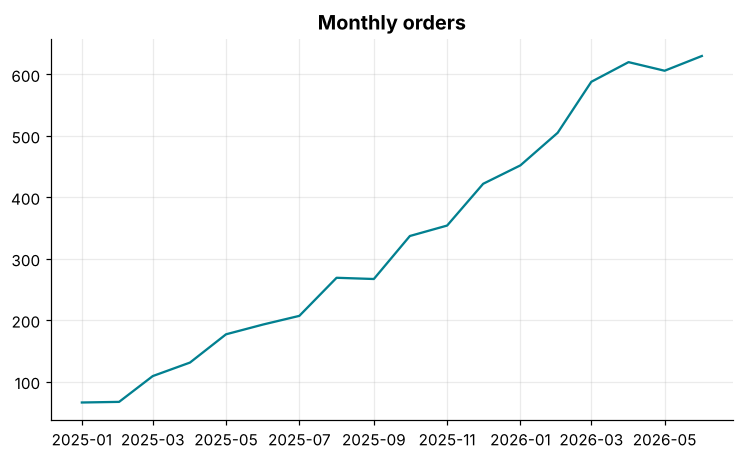
How it works: plt.subplots() creates a Figure (the whole canvas) and an Axes (one plot area inside it) and returns both. We draw on the axes with ax.plot(x, y) and decorate with ax.set_title. Importing skillancy_style applies the brand colours and a clean look to everything drawn afterwards.
Reading the result: Orders climb from 66 in Jan 2025 to 630 in Jun 2026. Even this minimal chart shows the shape of the story, but it still needs axis labels.
Example 2: Labels, markers and a grid
Question: Make the chart readable by someone who has never seen the data.
fig, ax = plt.subplots()
ax.plot(monthly.index, monthly.values, marker="o", linewidth=2, markersize=5)
ax.set_title("FreshBasket orders grew about 10x in 18 months")
ax.set_xlabel("Month")
ax.set_ylabel("Orders per month")
ax.set_ylim(bottom=0)
fig.autofmt_xdate()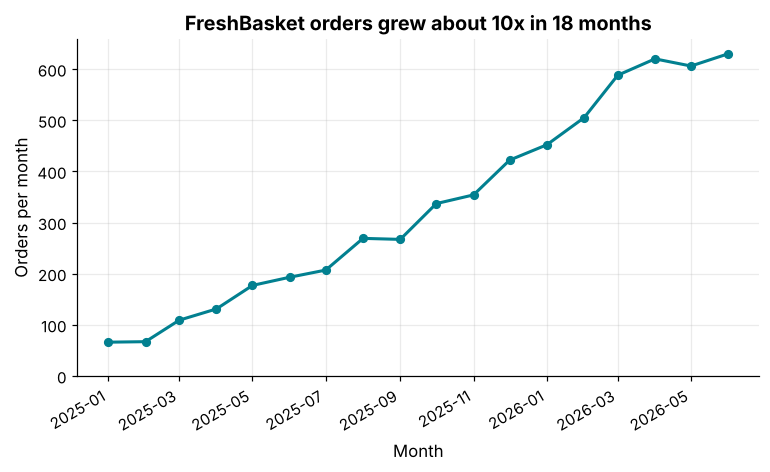
How it works: Always label axes with the quantity and unit. Markers (marker="o") show where actual data points are, set_ylim(bottom=0) makes the vertical axis start at zero so growth is not exaggerated, and fig.autofmt_xdate() rotates date labels so they do not collide. The title states the finding, not just the topic; "Monthly orders" says what the chart is, while "Orders grew about 10x" tells the reader what to notice.
Reading the result: The first and last points are 66 and 630, a ratio of 9.5, which justifies the "about 10x" in the title. Check every claim in a title against the numbers.
Example 3: Several series
Question: Compare the growth in three of the cities.
stores = pd.read_csv("stores.csv")
o = orders.merge(stores[["store_id", "city"]], on="store_id")
o["month"] = o["order_date"].dt.to_period("M").dt.to_timestamp()
by_city = o.groupby(["month", "city"]).size().unstack("city")

top3 = by_city.sum().nlargest(3).index
fig, ax = plt.subplots()
for city in top3:
    ax.plot(by_city.index, by_city[city], label=city, linewidth=2)
ax.set_title("The three biggest cities all grow together")
ax.set_ylabel("Orders per month")
ax.legend(title="City", frameon=False)
fig.autofmt_xdate()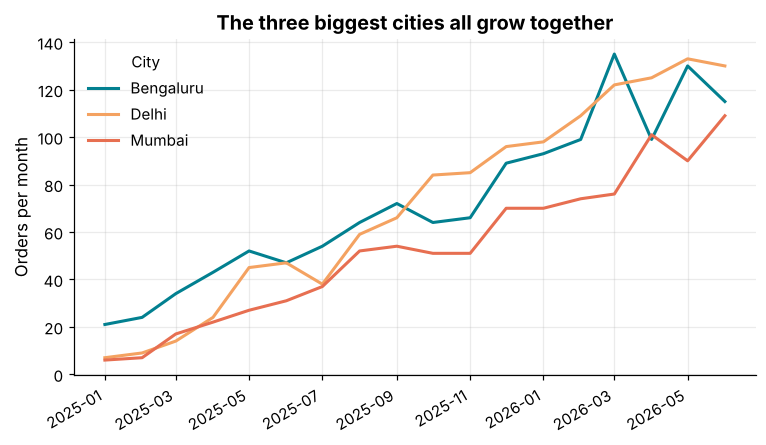
How it works: Call ax.plot once per series with a label, then ax.legend() draws the key. The colours come from the style's palette in order. Selecting the top three with nlargest keeps the chart readable: more than five or six lines becomes a tangle.
Reading the result: The three largest cities are ['Bengaluru', 'Delhi', 'Mumbai'], together 59% of all orders. If you have many categories, highlight a few and grey out the rest.
Example 4: Colours, styles and direct labels
Question: Use colour deliberately, and label lines directly instead of with a legend.
PALETTE = skillancy_style.PALETTE
fig, ax = plt.subplots()

for city in by_city.columns:
    ax.plot(by_city.index, by_city[city], color="#D0D5DD", linewidth=1)

for city, color, style in zip(top3, PALETTE, ["-", "--", ":"]):
    ax.plot(by_city.index, by_city[city], color=color, linewidth=2.5, linestyle=style)
    nudge = {top3[0]: 4, top3[2]: -4}.get(city, 0)
    ax.text(by_city.index[-1], by_city[city].iloc[-1] + nudge, f"  {city}", color=color, va="center", fontsize=10)

ax.set_title("Top three cities stand out from the other five")
ax.set_ylabel("Orders per month")
ax.set_xlim(right=by_city.index[-1] + pd.Timedelta(days=60))
fig.autofmt_xdate()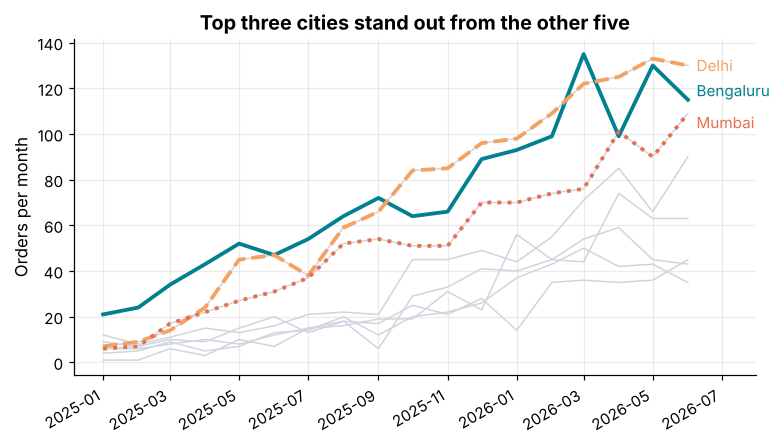
How it works: Plot the context lines in a muted grey, then the highlighted ones in strong colours on top. ax.text puts the city name next to the end of its line, so the reader does not need to match colours against a legend. Different linestyles help readers who cannot distinguish colours, and set_xlim leaves room on the right for the labels.
Reading the result: The grey lines show 5 other cities for context, and the highlighted lines end at [115, 130, 109] orders in the latest month. Colour is a tool for attention, so use it sparingly.
Example 5: Formatting tick labels
Question: Show money in rupees with lakh and crore units and dates in a friendly format.
import matplotlib.dates as mdates
from matplotlib.ticker import FuncFormatter

items = pd.read_csv("order_items.csv")
d = orders[orders["order_status"] == "Delivered"][["order_id", "order_date"]]
rev = items.merge(d, on="order_id")
rev["value"] = rev["quantity"] * rev["unit_price"]
rev_month = rev.groupby(rev["order_date"].dt.to_period("M").dt.to_timestamp())["value"].sum()

def lakh(x, pos):
    if x >= 1e7:
        return f"₹{x / 1e7:.1f} Cr"
    if x >= 1e5:
        return f"₹{x / 1e5:.0f} L"
    return f"₹{x:,.0f}"

fig, ax = plt.subplots()
ax.bar(rev_month.index, rev_month.values, width=22)
ax.yaxis.set_major_formatter(FuncFormatter(lakh))
ax.xaxis.set_major_formatter(mdates.DateFormatter("%b '%y"))
ax.xaxis.set_major_locator(mdates.MonthLocator(interval=3))
ax.set_title("Monthly delivered revenue")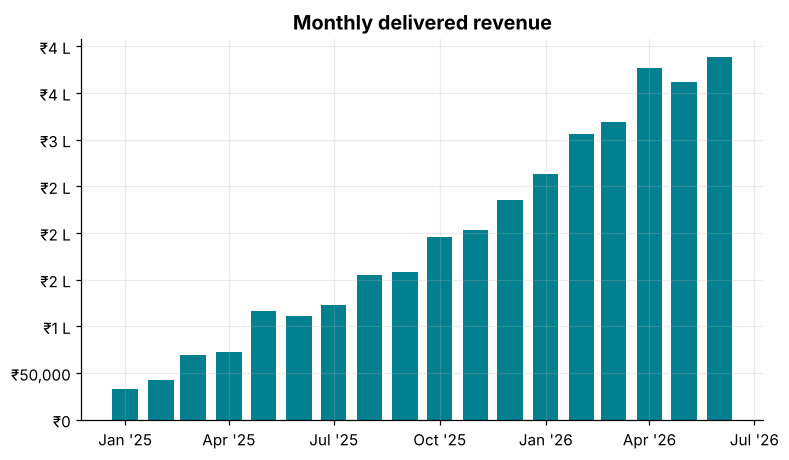
How it works: A FuncFormatter wraps any Python function that takes a value and returns the label text, so the axis shows ₹3 L instead of 300000. For dates, mdates.DateFormatter uses strftime codes and MonthLocator(interval=3) places a tick every three months. Every number a reader sees should be in the units they think in.
Reading the result: The best month earned ₹388,871, which the axis labels as ₹4 L. Total delivered revenue across the period is ₹35 L.
Example 6: Annotations
Question: Point at the most important thing on the chart.
peak = monthly.idxmax()
fig, ax = plt.subplots()
ax.plot(monthly.index, monthly.values, marker="o", linewidth=2)
ax.annotate(
    f"Record: {monthly.max()} orders",
    xy=(peak, monthly.max()),
    xytext=(peak - pd.Timedelta(days=300), monthly.max() * 0.9),
    arrowprops=dict(arrowstyle="->", color="#264653"),
    fontsize=10, color="#264653",
)
ax.axhline(monthly.mean(), color="#8D99AE", linestyle="--", linewidth=1)
ax.text(monthly.index[0], monthly.mean() * 1.04, f"average {monthly.mean():.0f}", color="#8D99AE", fontsize=9)
ax.axvspan(pd.Timestamp("2025-10-01"), pd.Timestamp("2025-11-30"), color="#F4A261", alpha=0.2)
ax.set_title("Orders hit a record in the latest month")
ax.set_ylabel("Orders per month")
fig.autofmt_xdate()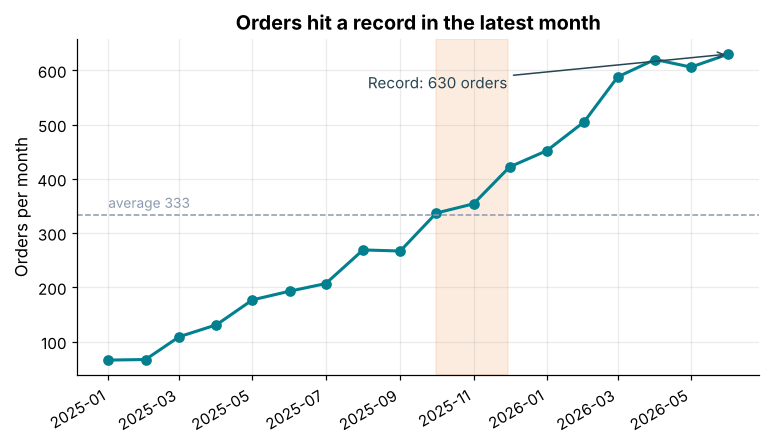
How it works: annotate draws text with an arrow from xytext to the point xy. axhline draws a horizontal reference line, axvspan shades a time band (here Diwali season), and ax.text places free text in data coordinates. Annotations turn a picture into an argument; add one or two, not ten.
Reading the result: The record is 630 orders in June 2026, against a monthly average of 333. The shaded band marks a period you might want to ask the business about.
Example 7: A secondary axis
Question: Show orders and average delivery time together without distorting either.
avg_minutes = orders.groupby(orders["order_date"].dt.to_period("M").dt.to_timestamp())["delivery_minutes"].mean()

fig, ax1 = plt.subplots()
ax1.bar(monthly.index, monthly.values, width=22, color="#028090", alpha=0.85)
ax1.set_ylabel("Orders per month", color="#028090")

ax2 = ax1.twinx()
ax2.plot(avg_minutes.index, avg_minutes.values, color="#E76F51", marker="o", linewidth=2)
ax2.set_ylabel("Average delivery (minutes)", color="#E76F51")
ax2.set_ylim(15, 35)
ax2.grid(False)

ax1.set_title("Delivery time stayed flat while volume grew")
fig.autofmt_xdate()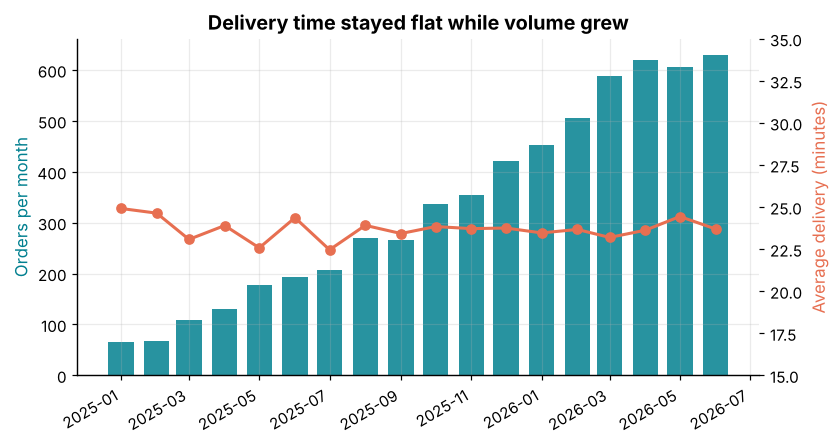
How it works: twinx() creates a second y-axis that shares the x-axis. Colour each axis label to match its series. Use dual axes sparingly: two different scales can suggest relationships that do not exist, so fix the ranges deliberately (here 15 to 35 minutes) and say plainly what each axis shows.
Reading the result: Orders grew 9.5 times, but the average delivery time stayed between 22.5 and 24.9 minutes, which is the headline the chart title claims.
Example 8: Subplots
Question: Place a few related charts side by side with shared axes.
fig, axes = plt.subplots(1, 3, figsize=(12, 3.6), sharey=True)
for ax, city in zip(axes, top3):
    ax.plot(by_city.index, by_city[city], linewidth=2)
    ax.set_title(city)
    ax.tick_params(axis="x", rotation=45)
axes[0].set_ylabel("Orders per month")
fig.suptitle("Monthly orders in the three biggest cities", fontweight="bold")
fig.tight_layout()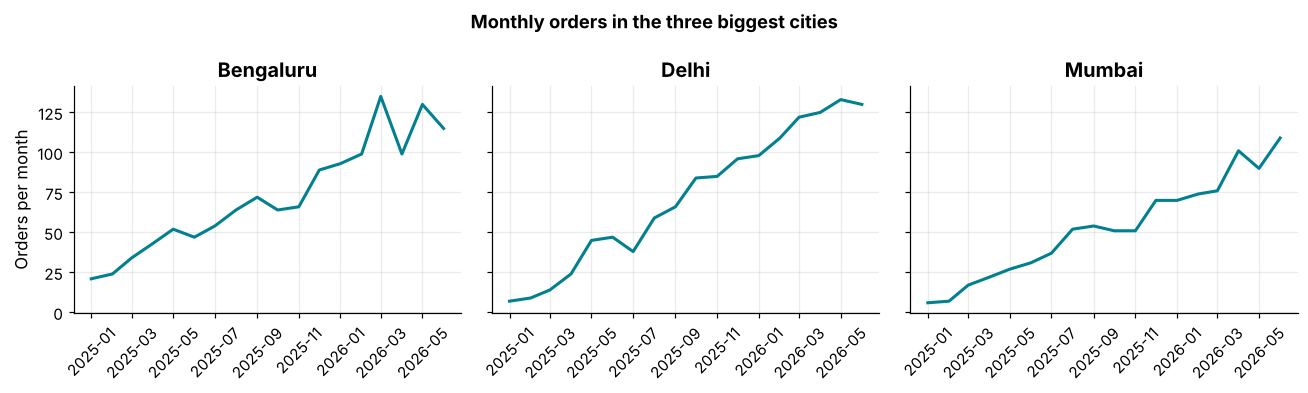
How it works: plt.subplots(rows, cols) returns an array of axes. sharey=True forces the same scale, which makes the panels directly comparable. fig.suptitle adds an overall title and fig.tight_layout() fixes the spacing. Small multiples like this beat one crowded chart.
Reading the result: All three panels use the same y-axis, so the heights can be compared fairly: Bengaluru peaks at 135, Delhi at 133 and Mumbai at 109 orders.
Example 9: Saving figures
Question: Export a chart as a high-resolution PNG and as a vector SVG.
from pathlib import Path

fig, ax = plt.subplots(figsize=(8, 4.5))
ax.plot(monthly.index, monthly.values, linewidth=2)
ax.set_title("Monthly orders")
fig.autofmt_xdate()

Path("out").mkdir(exist_ok=True)
fig.savefig("out/monthly_orders.png", dpi=200, bbox_inches="tight")
fig.savefig("out/monthly_orders.svg", bbox_inches="tight")
fig.savefig("out/transparent.png", dpi=100, transparent=True)
plt.close(fig)

for f in sorted(Path("out").glob("monthly_orders.*")):
    print(f.name, f.stat().st_size > 1000)
Output
monthly_orders.png True
monthly_orders.svg True
How it works: fig.savefig(path, dpi=..., bbox_inches="tight") writes the figure; the file type comes from the extension. Use PNG at 150 to 300 dpi for slides and documents, SVG for scalable web graphics, and transparent=True for logos over coloured backgrounds. Close figures you no longer need with plt.close(fig) to free memory, especially in loops.
Reading the result: The PNG and the SVG were both written (2 files). Always save with bbox_inches="tight" so labels are not cut off.
Example 10: The pandas shortcut
Question: How does df.plot relate to all this?
ax = monthly.plot(kind="line", marker="o", figsize=(8, 4.5), title="Monthly orders (via pandas)")
ax.set_ylabel("Orders")
ax.set_xlabel("")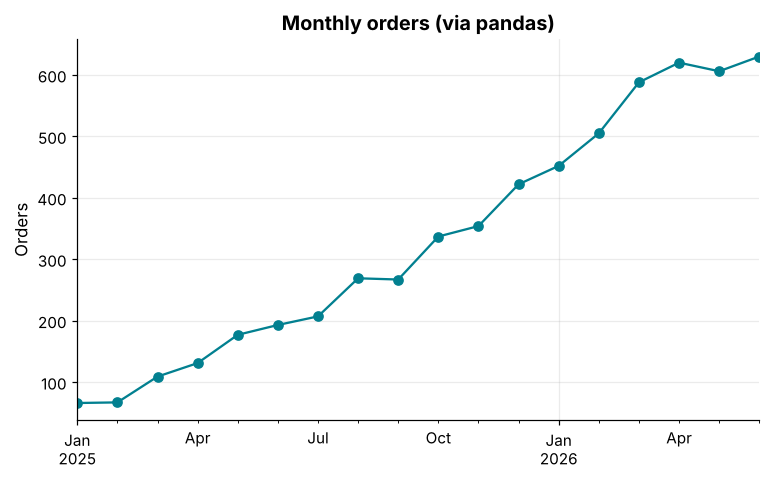
How it works: Series.plot() and DataFrame.plot() call Matplotlib and return the same Axes object, so you can keep customising with ax.set_ylabel and everything else you learned. It is great for quick exploration. For polished charts, build from plt.subplots() so you control each element.
Reading the result: The pandas shortcut drew the same 18 points with one line. It returns an ordinary Matplotlib Axes, which is why all your Matplotlib skills still apply.
Common mistakes
1. Mixing the stateful plt.plot style with the explicit ax style, causing curves to land on the wrong chart.
2. Not labelling axes or units.
3. Truncating the y-axis of a bar chart, which exaggerates differences.
4. Using too many colours or series.
5. Forgetting plt.close() in loops, so memory fills with figures.
fig, ax = plt.subplots()
ax.plot([1, 2, 3], [1, 2])
Output
Traceback (most recent call last):
  File "example.py", line 2, in <module>
    ax.plot([1, 2, 3], [1, 2])
    ~~~~~~~^^^^^^^^^^^^^^^^^^^
  File "example.py", line 1792, in plot
    lines = [*self._get_lines(self, *args, data=data, **kwargs)]
            ^^^^^^^^^^^^^^^^^^^^^^^^^^^^^^^^^^^^^^^^^^^^^^^^^^^^
  File "example.py", line 331, in __call__
    yield from self._plot_args(
               ~~~~~~~~~~~~~~~^
        axes, this, kwargs, ambiguous_fmt_datakey=ambiguous_fmt_datakey,
        ^^^^^^^^^^^^^^^^^^^^^^^^^^^^^^^^^^^^^^^^^^^^^^^^^^^^^^^^^^^^^^^^
        return_kwargs=return_kwargs
        ^^^^^^^^^^^^^^^^^^^^^^^^^^^
    )
    ^
  File "example.py", line 509, in _plot_args
    raise ValueError(f"x and y must have same first dimension, but "
                     f"have shapes {x.shape} and {y.shape}")
ValueError: x and y must have same first dimension, but have shapes (3,) and (2,)Practice questions
Practice 1 (Easy): Plot delivery time per month
Draw a labelled line chart of average delivery minutes per month, starting the y-axis at 0.
Show solution
fig, ax = plt.subplots()
ax.plot(avg_minutes.index, avg_minutes.values, marker="o")
ax.set_title("Average delivery time by month")
ax.set_ylabel("Minutes")
ax.set_ylim(bottom=0)
fig.autofmt_xdate()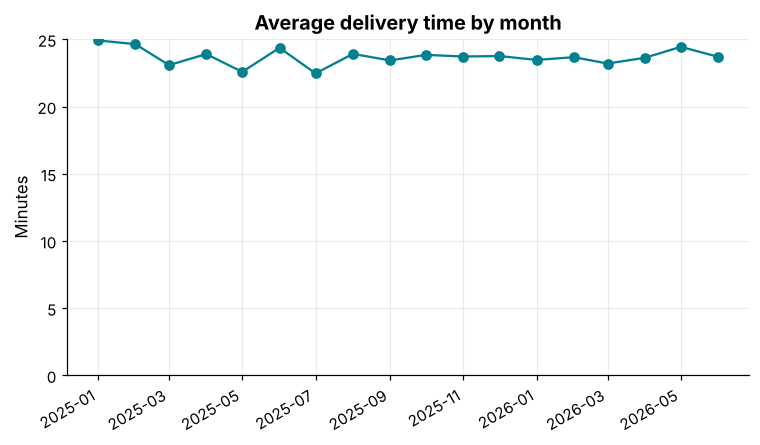
The line is nearly flat at about 23.7 minutes, which is a good news story hidden in a boring-looking chart.
Practice 2 (Medium): Highlight the worst month
Plot monthly revenue as a bar chart and make the lowest bar a different colour with a text label.
Show solution
colors = ["#E76F51" if v == rev_month.min() else "#028090" for v in rev_month.values]
fig, ax = plt.subplots()
ax.bar(rev_month.index, rev_month.values, width=22, color=colors)
ax.yaxis.set_major_formatter(FuncFormatter(lakh))
ax.set_title("The first month was the weakest")
low = rev_month.idxmin()
ax.text(low, rev_month.min(), f"{lakh(rev_month.min(), None)}", ha="center", va="bottom", fontsize=9)
fig.autofmt_xdate()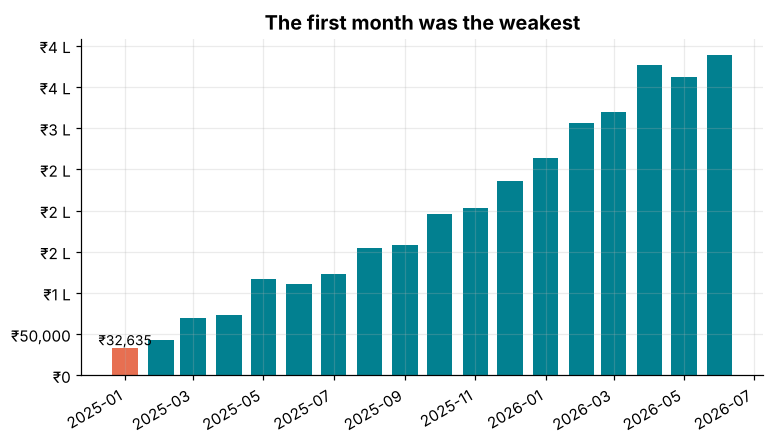
A list comprehension builds one colour per bar. The weakest month was January 2025 at ₹32,635.
Practice 3 (Hard): A two-panel summary
Make a figure with two panels: monthly orders on the left, and the share of orders by payment method as a horizontal bar chart on the right. Add a figure title.
Show solution
share = orders["payment_method"].value_counts(normalize=True).sort_values() * 100

fig, (a1, a2) = plt.subplots(1, 2, figsize=(11, 4), gridspec_kw={"width_ratios": [2, 1]})
a1.plot(monthly.index, monthly.values, linewidth=2)
a1.set_title("Orders per month")
a1.tick_params(axis="x", rotation=45)

a2.barh(share.index, share.values, color="#F4A261")
a2.set_title("Payment method share (%)")
for y, v in enumerate(share.values):
    a2.text(v + 0.5, y, f"{v:.0f}%", va="center", fontsize=9)

fig.suptitle("FreshBasket at a glance", fontweight="bold")
fig.tight_layout()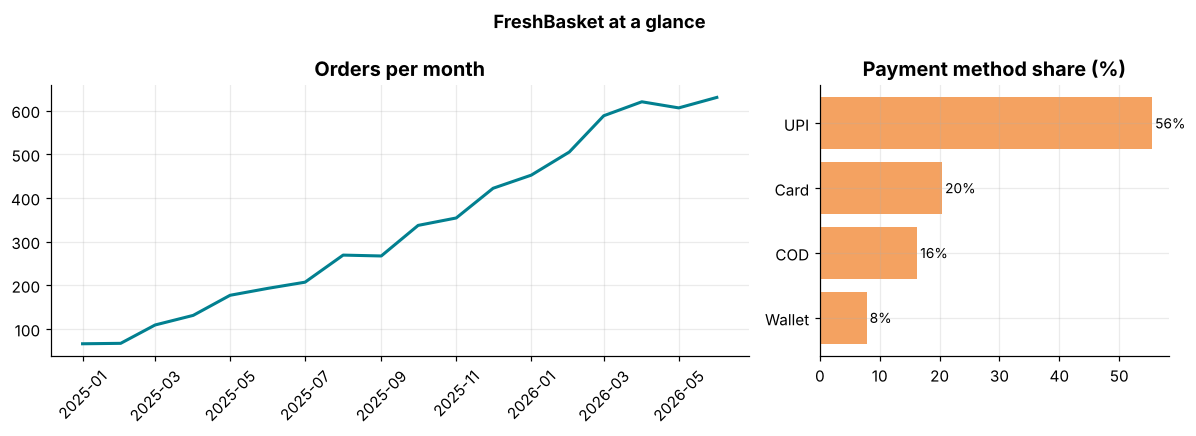
gridspec_kw gives the left panel twice the width. Direct value labels on the bars remove the need for a gridline. The top method is UPI with 56%.
Key takeaways
- A Figure holds Axes; use
fig, ax = plt.subplots()and draw withax.plot. - Label axes with units, write a title that states the finding, and start bar charts at zero.
- Use colour to direct attention; label lines directly when you can.
FuncFormatterandmdatesformat money and dates to the units readers use.- Annotations, reference lines and shaded bands tell the story.
- Use
sharey,tight_layoutand small multiples for comparisons, and save withbbox_inches="tight". - Pandas
plotis a shortcut to the same Matplotlib objects.
Frequently asked questions
What is the difference between a Figure and Axes?
The Figure is the whole image; Axes is a single plot area with its own x and y axis. One figure can hold many axes.
Why do I see two interfaces in tutorials?
plt.plot() is a quick, stateful shortcut that acts on "the current axes"; ax.plot() is explicit. Use the explicit style for anything beyond a quick look.
How do I change the style for all charts?
Use plt.style.use("...") or set plt.rcParams, as our skillancy_style module does once at the top of the notebook.
How can I show a chart in a Jupyter notebook?
Charts display automatically at the end of a cell (use %matplotlib inline in older setups). In scripts, call plt.show() or save to a file.
What is the best figure size?
Match the destination: about 8×4.5 inches for slides and documents, wider for dashboards. Increase dpi for print rather than the size.
When should I use Plotly instead?
Use Plotly when you need interactivity (hover, zoom) in a web page or dashboard. Matplotlib is the standard for static, publication-quality figures.
Keep learning Python
One email a week with Python and analytics guides, new practice questions and cohort dates. No spam, unsubscribe anytime.
Ready to practise? Try the Python interview questions